

Smartphone Fireworks Photography and Videography: 12 Tips for Blur-Free Shots
August 9, 2026
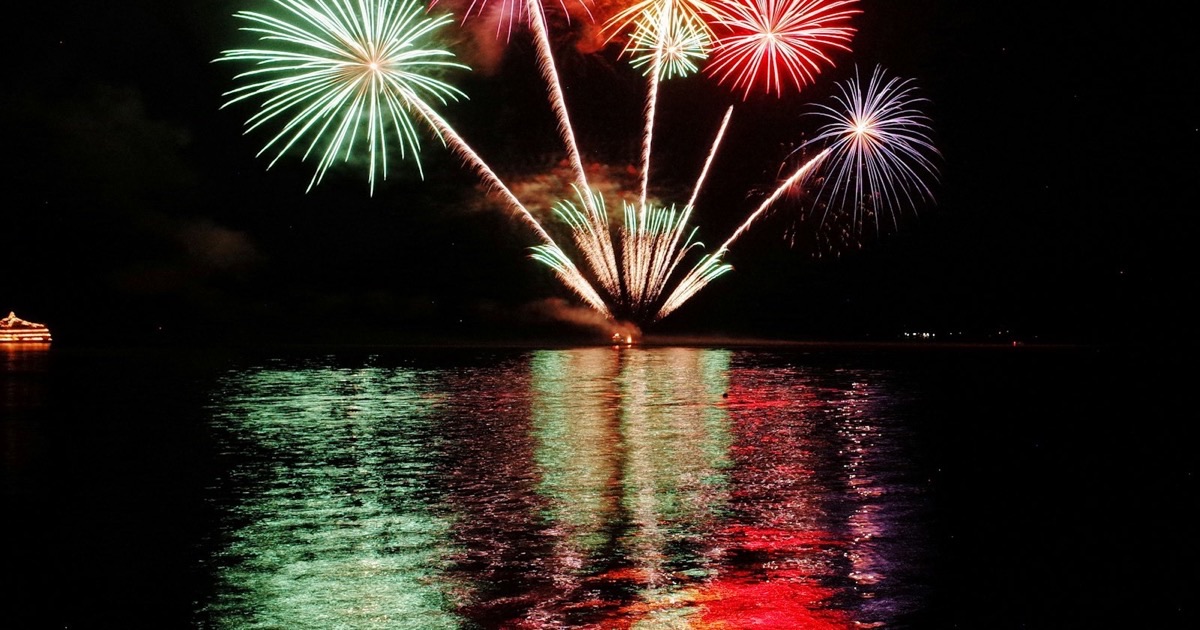
We've all been there: stunning fireworks exploding right before your eyes, you raise your phone to take a picture, and when you look back at home, all you see is a blurry streak of light on a black background. The good news: it's not because your phone is bad — phones made from 2020 onwards are more than capable of taking great fireworks photos. The issue lies in a few settings and habits. This article will show you step-by-step.
Part 1 — Preparation Before the Fireworks Begin
Tip 1: Clean the Lens
It sounds funny, but this is the number one reason night photos turn out blurry or hazy. Your phone lens sits in your pocket all day, collecting finger oils and dust. Wipe it with a soft cloth (a cotton t-shirt works too) before you start — the difference is night and day.
Tip 2: Clear Storage Space
Shooting 4K fireworks video consumes around 350MB per minute. Running out of memory mid-show means missing the best moments. Before leaving, delete unnecessary files or back up old photos to the cloud.
Tip 3: Fully Charge + Bring a Power Bank
Continuous screen brightness, heavy camera usage, and weak network coverage causing constant signal searching — all three drain the battery fast. Turn on Low Power Mode / Battery Saver right from the start.
Tip 4: Bring a Mini Tripod If You Have One
A mini tripod or an affordable gimbal (1,000–3,000 yen) takes your night photo quality to a whole new level by keeping the phone steady during long exposures. If you don't have one, rest your phone against a railing or backpack, or tuck both elbows firmly against your ribs to stabilize your hands.
Part 2 — Camera Settings
Tip 5: iPhone — Using Night Mode Correctly
- Open Camera, point it at the dark sky — the yellow moon icon will automatically appear in the corner.
- Tap the icon and drag the slider to adjust exposure time (1–3 seconds works best for fireworks).
- Keep your phone completely still until the shot is finished — this is when a tripod or steady support is crucial.
- Newer models feature Photographic Styles: leaving it on default is fine.
Tip 6: Android — Use Pro/Manual Mode If Available
Many Samsung, Xiaomi, and Pixel phones have a Pro mode allowing manual adjustments. Good starting settings for fireworks:
- ISO: 100–200 (low for clean, noise-free images)
- Shutter Speed: 1–3 seconds (to capture the full burst of light)
- Focus: switch to manual and set to infinity (∞)
- White Balance: set to a fixed value (around 3500–4500K) instead of auto, so colors don't jump around between shots
If you don't have Pro mode, use Night mode (Night/Nightography) — the principle is similar to iPhone.
Tip 7: Lock Focus and Exposure in Advance
This is the most effective yet lesser-known trick. Leaving the camera to auto-focus on a dark sky will make it struggle, resulting in blurry photos.
- iPhone: tap and hold on the fireworks area until yellow AE/AF LOCK appears. Then swipe up/down to adjust brightness to your liking.
- Android: tap and hold similarly; a padlock icon usually appears.
It's best to lock right after the first shell bursts — by then, your camera has "learned" the correct distance and brightness.
Tip 8: Turn OFF the Flash
A smartphone flash only reaches 3–4 meters at most. Fireworks are hundreds of meters away. Turning on the flash will only ruin your photo and annoy people around you. Turn it completely off, don't leave it on "Auto".
Part 3 — While Shooting
Tip 9: Press the Shutter Earlier Than You Think
Fireworks have a delay: you hear the "thump" as it launches, and it bursts about 1–2 seconds later. Press the shutter as soon as you hear the launch sound or see a streak of light flying up. Don't wait until it bursts — by then, it's too late.
Tip 10: Composition — Don't Just Shoot Fireworks on a Black Background
This is the biggest reason fireworks photos look boring. A great photo needs an anchor point in the lower part of the frame:
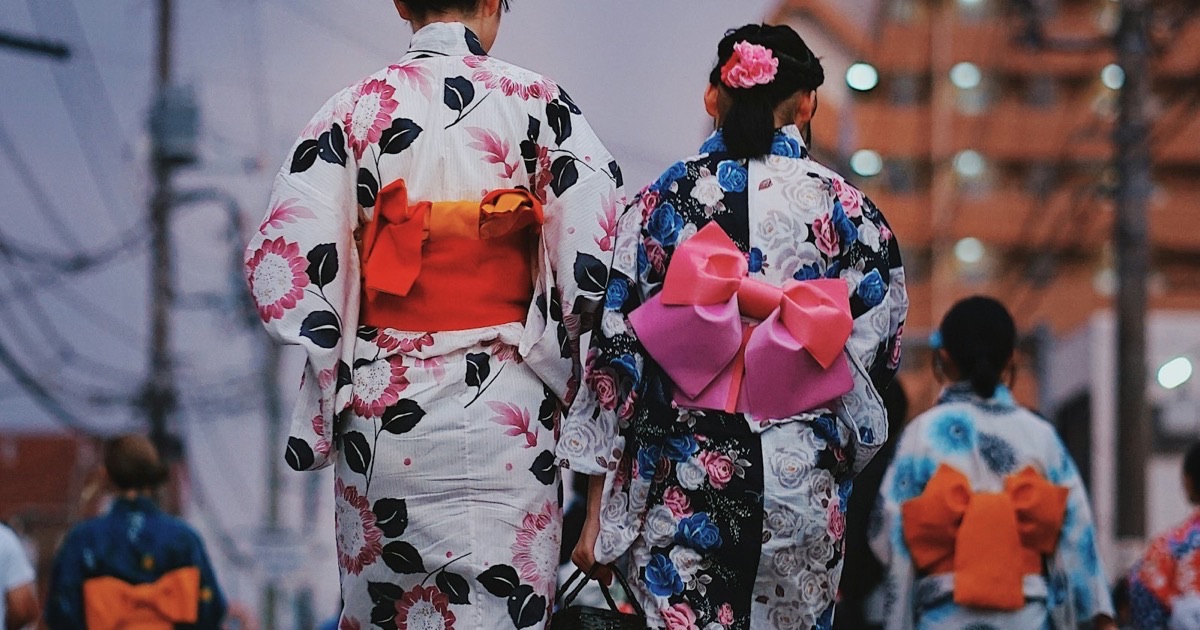
- Silhouettes of the crowd, heads, and yukata shapes
- Reflective water surfaces (lakes, rivers, seas — extremely effective)
- Bridges, temples, rows of buildings, festival stall lights
- Friends with their backs turned looking up at the sky
Rule of thumb: divide the frame into thirds horizontally — the sky takes up the top 2/3, and the landscape/ground scenery takes up the bottom 1/3.
Tip 11: Video Recording — Choose 1080p Instead of 4K
Three reasons: saves storage, saves battery, and viewers can barely tell the difference on a phone screen. Plus: record short 15–30 second clips at a time instead of continuously recording for 10 minutes — no one watches long videos to the end, and they are heavy to send.
Pro tip: while recording, do not zoom in. Digital zoom pixelates the video. If you want a close-up, move closer (if possible) or crop during post-editing.
Tip 12: Spend 5 Minutes WITHOUT Your Phone
Honestly: the best photo of the night will likely be in your memories, not on your device. Set aside a few minutes — usually during the finale — put your phone away and just watch. You won't regret it.
Part 4 — After Shooting: Smart Ways to Share
This part directly affects your wallet, because uploading photos/videos uses up the most data during a festival night:
- Don't upload right on the spot. Network congestion makes uploads very slow, and repeated retries drain battery and data multiple times faster than usual.
- Turn off automatic cloud backup over cellular networks. Google Photos / iCloud can silently upload gigabytes of video to the cloud. Go into settings and select "Wi-Fi only".
- Upload when you get home after connecting to Wi-Fi — it's faster, higher quality, and doesn't consume your mobile plan's data allowance.
- Send videos to family using links (Google Photos, iCloud) instead of sending direct video files via Zalo/LINE — it saves data and avoids bad compression.
- Check your remaining data before leaving. A night of heavy festival shooting can devour 2–4GB if auto-backup is running.
If your data plan runs out quickly whenever there's a festival month, your plan might not fit your needs. HD TELECOM can help check for free: send us a screenshot of your data usage stats and current plan name, and we will reply in Vietnamese to advise whether you should keep or change it.
Quick Reference Guide
| Issue | Common Cause | Solution |
|---|---|---|
| Blurry photos | Camera shake during long exposure | Rest phone on a steady object or use a mini tripod |
| Fireworks appear as white spots | Overexposure / incorrect metering | Lock AE then swipe down to reduce brightness |
| Pitch black photo | Night mode not turned on | Turn on Night mode, expose for 1–3 seconds |
| Too slow to catch the shot | Pressing shutter after the burst | Press shutter upon hearing the launch sound |
| Boring photo | Only black sky in frame | Include crowd, water surface, or bridge in frame |
| Battery runs out mid-way | Bright screen + continuous signal search | Enable Battery Saver + bring a power bank |
Conclusion
The three most important things, if you can only remember three: ① clean your lens, ② lock focus and exposure after the first burst, ③ include the crowd or water surface in the lower part of the frame. That alone is enough to significantly upgrade your photos compared to last year. And don't forget to put your phone away for the last few minutes to watch with your own eyes — that's what you will remember the longest.
Related products
Find your plan with HD TELECOM
SIM, eSIM and Pocket WiFi — genuine quality, clear pricing, 24/7 support.

Going to a crowded festival without losing each other: a communication guide when the network is congested
First-Time Firework Guide in Japan: What to Bring, What to Wear, and When to Go

Free Daily Calls Home to Vietnam: The Best Apps and Data-Saving Tips
10 Common SIM Errors in Japan and How to Fix Them Yourself in 5 Minutes