This page is for customers using an HD Telecom Rakuten data SIM on iPhone. It shows you how to download Rakuten's Rcom-cellular APN configuration profile and install it. You only need to do this once, and it takes about 1 minute. Android phones usually need no setup (see the Android section below).
Download the Rakuten configuration profile
To download the profile, tap RAKUTEN, or scan the QR code below with the Camera app. Open it in Safari on the iPhone that has the Rakuten SIM inside.
QR code for downloading the Rakuten APN configuration profile for iPhoneරූපය ඉක්මනින්
Install the profile on iPhone
Insert the Rakuten SIM, connect to Wi-Fi, then open Safari. Don't use Chrome or any other browser.Step 1: insert the SIM, connect to Wi-Fi and open Safariරූපය ඉක්මනින්
Tap RAKUTEN above to open it in Safari, or scan the QR code with the Camera app.Step 2: opening the Rakuten download link in Safariරූපය ඉක්මනින්
When Safari asks whether to allow the configuration profile download, tap "Allow".Step 3: tap Allow to download the configuration profileරූපය ඉක්මනින්
When your iPhone shows "Profile Downloaded", tap "Close".Step 4: the Profile Downloaded message, tap Closeරූපය ඉක්මනින්
Leave Safari and open the Settings app.Step 5: open the Settings appරූපය ඉක්මනින්
Scroll down and tap "General".Step 6: tap Generalරූපය ඉක්මනින්
Scroll down and tap "VPN & Device Management".Step 7: tap VPN & Device Managementරූපය ඉක්මනින්
Under "DOWNLOADED PROFILE", tap RCom MVNO iPhone用プロファイル (the Japanese name of the Rcom-cellular profile).Step 8: choosing the RCom MVNO iPhone用プロファイル profileරූපය ඉක්මනින්
Tap "Install" in the top-right corner, enter your iPhone passcode, then tap "Install" again to confirm.Step 9: installing the Rakuten profile and entering the passcodeරූපය ඉක්මනින්
4G/5G appears at the top of the screen (some iPhone models also show Rakuten). Turn off Wi-Fi and open a website: if it loads, your SIM is working.Step 10: the Rakuten SIM is onlineරූපය ඉක්මනින්
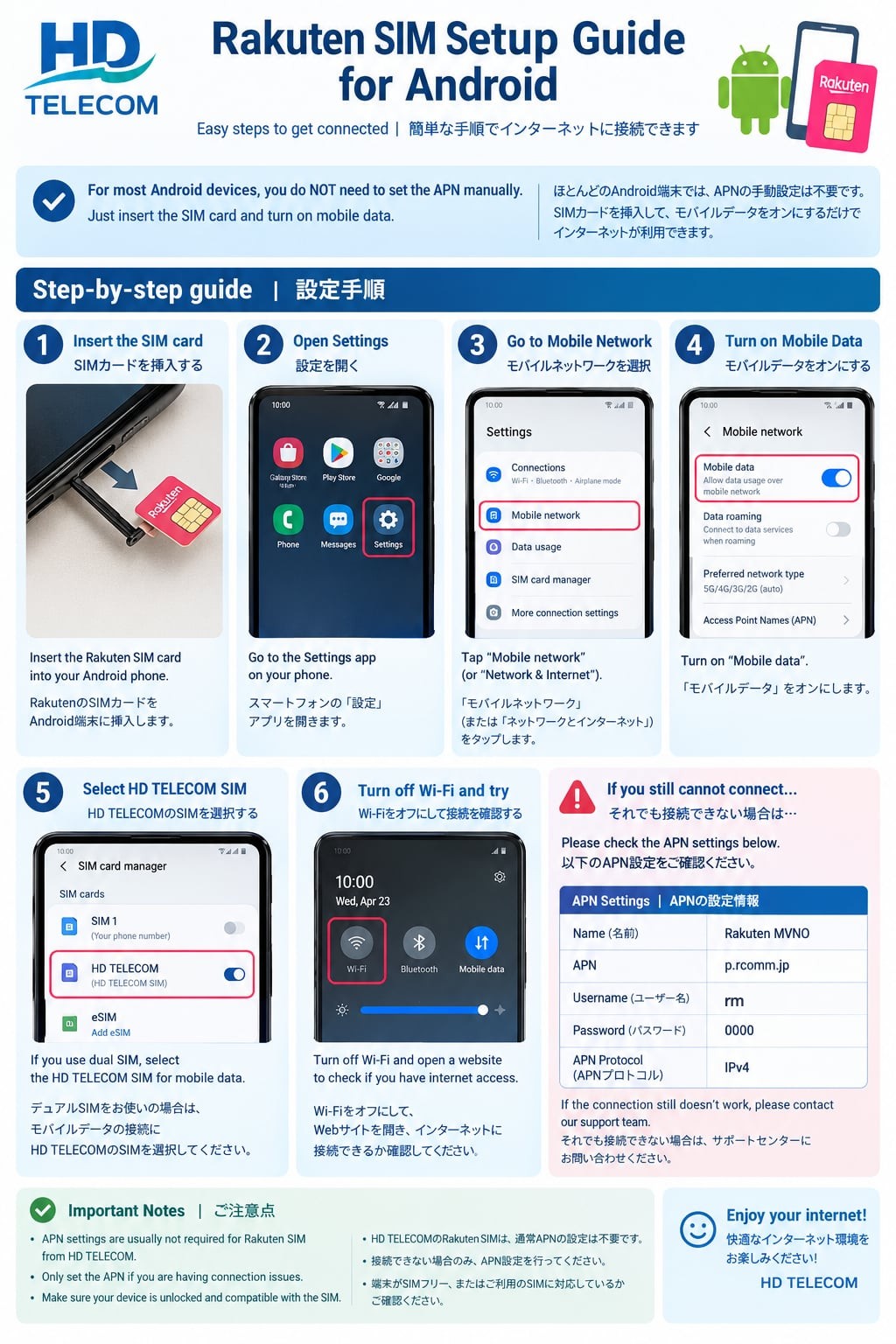
Rakuten SIM on Android: usually no setup needed
Most Android phones don't need any APN settings. Insert the SIM and turn on Mobile data. Menu names vary slightly by phone maker.
Insert the HD Telecom Rakuten SIM into your Android phone.
Open the Settings app.
Tap Mobile network (or Network & internet).
Turn on Mobile data.
Dual-SIM phones: in SIM card manager (or similar), choose the HD Telecom Rakuten SIM for mobile data.
Turn off Wi-Fi and open a website to check that you are connected.
Only do this if your phone doesn't connect on its own. Go to Settings → Mobile network → Access Point Names (APN), tap + (Add) and enter:
Field
Value
Name
Rakuten MVNO
APN
p.rcomm.jp
Username
rm
Password
0000
Authentication type
CHAP
APN protocol
IPv4
Save, select the new APN, then turn Mobile data off and on again. Your phone must also be unlocked: see Check your phone. If it still does not work, contact support.
iPhone cannot get online after installing
Check that you finished step 9 by tapping "Install": in General → VPN & Device Management, the Rakuten profile should be listed under "CONFIGURATION PROFILE", no longer under "Downloaded Profile".