

How to Set Up HD Telecom SoftBank Data SIM
September 8, 2026
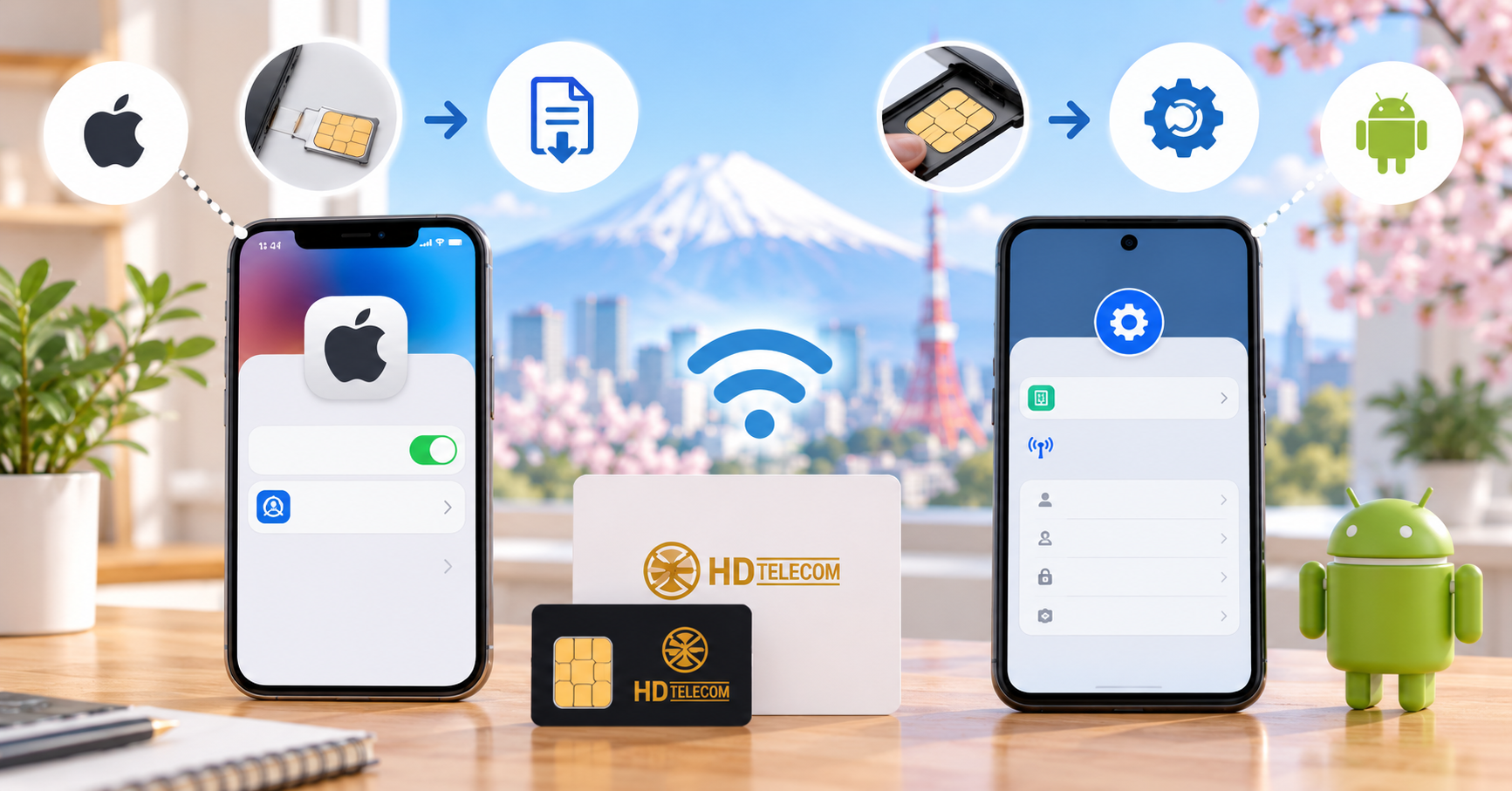
How to Set Up HD Telecom SoftBank Data SIM
Quick Answer
HD Telecom’s SoftBank Data SIM is set up differently on iPhone and Android. If you use an iPhone, you need to open the configuration link http://sim4.me/s1, download the SoftBank profile, and install it in Settings. If you use Android, the SoftBank Data SIM from HD Telecom usually does not require any additional configuration. Just insert the SIM, turn on mobile data, and check your 4G/5G connection.
In short: iPhone requires profile installation; Android usually works after inserting the SIM. Before starting, make sure your phone is unlocked, your iPhone has Wi-Fi access if needed, and your SIM has been correctly activated by HD Telecom.
Who This Guide Is For
This guide is for customers who have purchased or are about to receive an HD Telecom SoftBank Data SIM and want to set it up by themselves. It is especially useful for:
- People who have just arrived in Japan and do not know how to set up their SIM.
- iPhone users who need to download the SoftBank configuration profile.
- Android users who want to know whether APN or profile setup is required.
- People who inserted the SIM but can see signal bars without internet access.
- People ordering a SIM for friends or family and needing a simple guide to send them.
Cases Not Covered by This Guide
This guide applies only to HD Telecom’s SoftBank Data SIM. It does not apply to the following cases:
- Voice SIM with a Japanese phone number: activation and setup steps may be different.
- eSIM: eSIM requires scanning a QR code or entering an activation code.
- Rakuten, Docomo, or other carrier SIMs: configuration links and setup steps may be different.
- SIM-locked phones: even if the settings are correct, the SIM may not work.
- SIMs that have not been activated yet: if the service is not active, the phone may not connect even with correct settings.
Before You Start
Before setting up the SIM, quickly check these 4 points:
- Your phone is SIM-free or unlocked.
- The SoftBank Data SIM is inserted correctly.
- If you use an iPhone, you have access to Wi-Fi to download the profile.
- Your phone has enough battery, preferably above 20%.
How to Set Up on iPhone
Step 1: Connect Your iPhone to Wi-Fi
First, connect your iPhone to Wi-Fi. Since the new SIM may not have internet access yet, Wi-Fi is needed to open the link and download the SoftBank profile.
Step 2: Open the Configuration Link
On your iPhone, open a browser and visit:
Open the link directly on the iPhone where you want to use the SIM. Do not open it on a computer or another device, because the profile must be downloaded to the correct iPhone.
Step 3: Allow the Profile Download
When your iPhone asks whether to download or install the configuration profile, tap:
Allow
Then wait until the SoftBank profile download is completed.
Step 4: Open the Downloaded Profile
After downloading, return to the Home screen and go to:
Settings → Profile Downloaded
If you do not see this option, open the main Settings screen and check near the top, usually under your Apple ID or near the system notification area.
Step 5: Install the SoftBank Profile
Select the downloaded SoftBank profile, then tap in this order:
Install → Install → Done
If your iPhone asks for your passcode, enter your device passcode to continue.
Step 6: Check the SoftBank SIM in Cellular Settings
After installing the profile, go to:
Settings → Cellular
Check whether the SoftBank SIM or eSIM appears in the mobile line list.
Step 7: Turn On Mobile Data
In Cellular settings, turn on:
Mobile Data
If your phone uses multiple SIMs, select the SoftBank SIM as the main data line.
Step 8: Turn Off Wi-Fi and Test 4G/5G
After selecting SoftBank as your data line, turn off Wi-Fi and open any website. If it loads using 4G/5G, the setup is complete.
How to Use on Android
Android Does Not Require Profile Installation
For HD Telecom’s SoftBank Data SIM on Android, you usually do not need to open the configuration link or install any additional profile. Just insert the SIM and start using it.
Steps for Android
- Turn off your Android phone.
- Insert the SoftBank Data SIM into the SIM tray.
- Turn the phone back on.
- Wait for the phone to detect the SoftBank signal.
- Go to SIM / Mobile Network settings and turn on Mobile Data.
- If your phone has 2 SIMs, select the SoftBank SIM for internet/data.
- Turn off Wi-Fi and open a website to test the 4G/5G connection.
Depending on the phone brand, such as Samsung, Google Pixel, OPPO, or Xiaomi, the menu names may be slightly different:
- Settings → Connections → Mobile Networks
- Settings → Network & Internet → SIMs
- Settings → SIM Cards & Mobile Networks
The principle is the same: insert the SIM → turn on mobile data → choose the SoftBank SIM for internet.
Quick Comparison: iPhone vs Android
| Device | Is a profile required? | Main setup step |
|---|---|---|
| iPhone | Yes | Open http://sim4.me/s1, download and install the SoftBank profile |
| Android | No | Insert the SIM, turn on mobile data, and select the SoftBank SIM |
Common Issues and How to Fix Them
1. The SIM is inserted in iPhone but there is no internet
The most common reason is that the SoftBank profile has not been installed yet. Connect to Wi-Fi, open http://sim4.me/s1 on your iPhone, and repeat the profile installation steps.
2. The profile was downloaded but not installed
Many users download the profile but forget to install it. After downloading, you must go to:
Settings → Profile Downloaded → Install
If the profile is only downloaded but not installed, the SIM may still not connect.
3. The wrong SIM is selected for mobile data
If your phone has both a Vietnamese SIM and a SoftBank SIM, it may still be using the old SIM for mobile data. Open Cellular or SIM settings and select SoftBank as the main data line.
4. Wi-Fi is still turned on during testing
If Wi-Fi is still on, you may think the SIM is working while the phone is actually using Wi-Fi. After setup, turn off Wi-Fi and test with 4G/5G.
5. Android does not connect after inserting the SIM
Android usually does not require additional setup. If it still does not connect, try:
- Restarting the phone.
- Checking whether mobile data is turned on.
- Checking whether the SoftBank SIM is selected for internet.
- Removing and reinserting the SIM correctly.
- Checking whether the phone is SIM-locked.
6. The phone shows signal bars but no internet
This may happen if the configuration is not correct, mobile data is off, or the SIM has not been activated yet. On iPhone, check the SoftBank profile. On Android, restart the phone and check mobile data settings.
7. The phone says “No SIM” or “No Service”
Check whether the SIM is inserted correctly, whether the SIM tray is aligned, and whether your phone supports Japanese SIMs. If the phone is locked to another carrier, you must unlock it before use.
When Should You Contact HD Telecom?
Contact HD Telecom support if you have tried the steps above but still face one of these issues:
- You installed the SoftBank profile on iPhone but still cannot access the internet.
- You inserted the SIM on Android, turned on mobile data, restarted the phone, but still cannot connect to 4G/5G.
- Your phone shows “No SIM” or “No Service”.
- You are not sure whether your phone is SIM-locked.
- You installed the wrong profile or want to confirm whether your SIM type is correct.
When contacting support, send the following information so they can check faster:
- Name of the person who placed the order.
- Order number, if available.
- Phone model: iPhone, Samsung, Pixel, OPPO, Xiaomi, etc.
- Screenshot of the SIM settings screen or the error message.
- Photo of the SIM front side or information about the plan you purchased.
Frequently Asked Questions
Can I use HD Telecom’s SoftBank Data SIM on iPhone?
Yes. However, on iPhone, you need to download and install the SoftBank configuration profile from http://sim4.me/s1 for stable internet access.
Can I use HD Telecom’s SoftBank Data SIM on Android?
Yes. On Android, you usually only need to insert the SIM, turn on mobile data, and select the SoftBank SIM for internet. No profile installation is required.
Do Android users need to open http://sim4.me/s1?
No, not in most cases. The configuration link is mainly for iPhone. Android users should insert the SIM and test the connection directly.
Do I need Wi-Fi to set up the SIM?
If you use an iPhone, you need Wi-Fi to download the profile. If you use Android, Wi-Fi is usually not required for setup, but it is useful for checking information or contacting support.
Do I need to restart the phone after setup?
If the internet does not work after setup, restarting the phone is recommended. It often helps the phone recognize the SIM and network settings correctly.
Can a Data SIM make calls or receive SMS?
A Data SIM is mainly for internet access. If you need a Japanese phone number for calls, SMS, banking, PayPay, or official procedures, choose a voice SIM with a Japanese phone number.
What should I do if the speed is slow even after correct setup?
Network speed may depend on location, time of day, indoor signal quality, phone model, and your plan status. Try moving closer to a window, turning Airplane Mode on and off, or restarting your phone.
Conclusion
For HD Telecom’s SoftBank Data SIM, remember this simple rule: iPhone requires profile installation from http://sim4.me/s1, while Android usually does not require any extra setup and works after inserting the SIM. After setup, turn on mobile data, select the SoftBank SIM, and turn off Wi-Fi to test 4G/5G.
If you still cannot connect after following the guide, contact HD Telecom and send your error screenshot, phone model, and order number so support can check faster.
HD TELECOM
Find your plan with HD TELECOM
SIM, eSIM and Pocket WiFi — genuine quality, clear pricing, 24/7 support.