

How to Set Up HD Telecom SoftBank Data SIM on iPhone and Android
September 8, 2026
How to Set Up HD Telecom SoftBank Data SIM on iPhone and Android
Quick answer
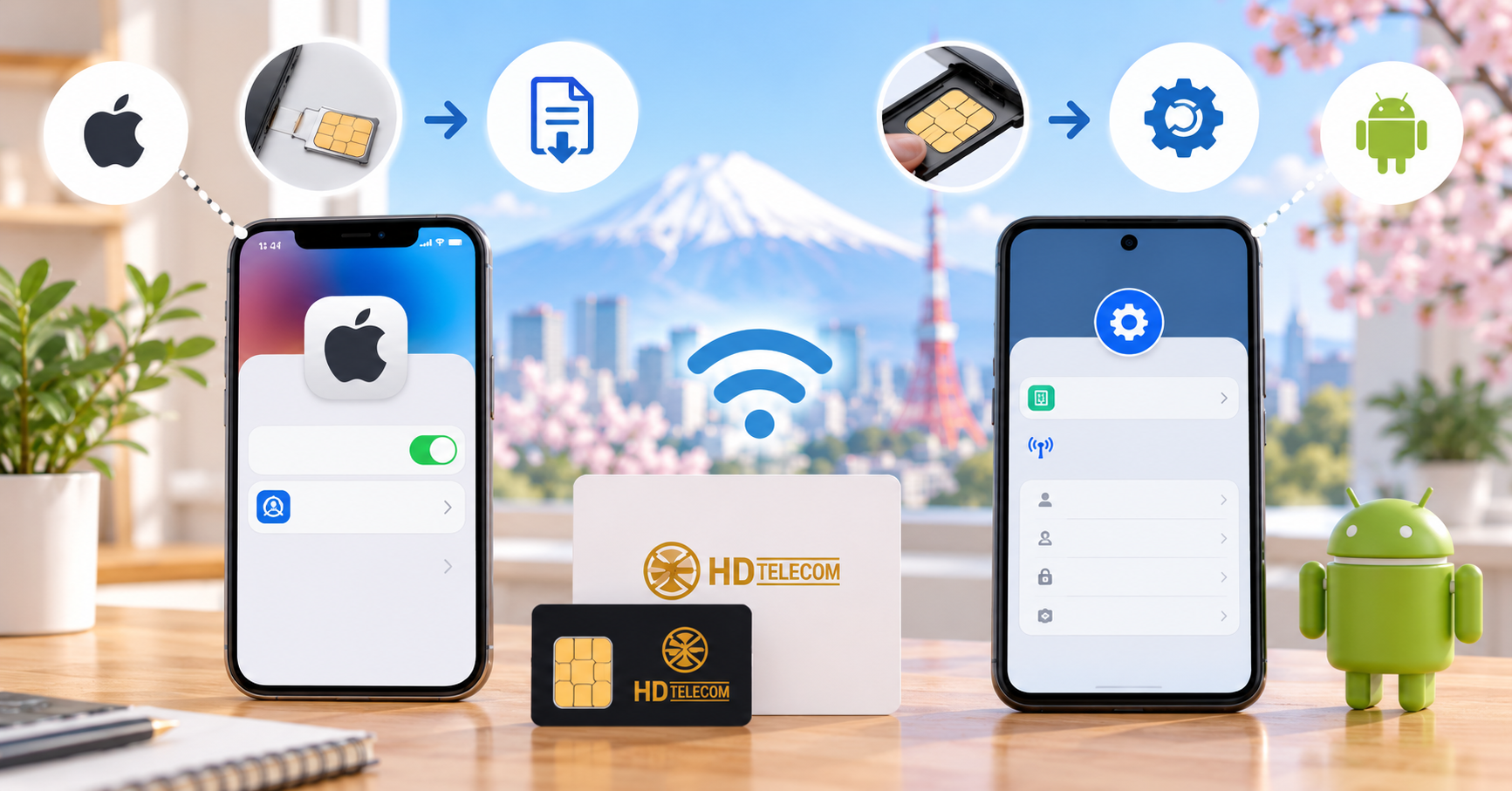
After receiving your HD Telecom SoftBank Data SIM, you need to do three things: insert the SIM card, check the mobile signal, and set up the internet connection profile or APN. On iPhone, you need to download and install a configuration profile. On Android, you need to enter the APN settings manually.
For iPhone, open the following link in Safari:
Download SoftBank configuration profile for iPhone
For Android, use these APN settings:
| Field | Value |
|---|---|
| Name | softbank |
| APN | plus.4g |
| Username | plus |
| Password | 4g |
| Authentication type | Leave blank |
Important: all values must be entered in lowercase. Even one wrong character can make your phone show signal but fail to connect to the internet.
Who this guide is for
- You have just received a SoftBank Data SIM from HD Telecom.
- You inserted the SIM but cannot access the internet.
- Your phone shows SoftBank signal, but Safari or Chrome does not load websites.
- You use an iPhone and need to install a configuration profile.
- You use Android and need to enter APN settings manually.
- You are new to Japan and are not familiar with Japanese data SIM settings.
This guide does not apply to
- eSIM: eSIM uses a QR code setup flow.
- Voice SIM: SIMs with a Japanese phone number may require identity verification and a different activation process.
- Pocket WiFi: Pocket WiFi only requires the device to be turned on and connected using SSID/password.
- SIM-locked phones: If your phone is locked, correct APN settings may still not work.
- SIMs from other providers: APN/profile settings are provider-specific and should not be mixed.
Before you start
- Your HD Telecom SoftBank Data SIM.
- An unlocked phone that can use Japanese SIM cards.
- A SIM eject pin.
- A WiFi connection.
- The iPhone profile link or Android APN information.
- The setup guide included with your SIM, if available.
iPhone needs WiFi to download the configuration profile. For Android, you do not need to download a profile, but it is helpful to have WiFi or another device to read this guide while entering the APN.
How to set up on iPhone
Step 1: Insert the SIM card
- Turn off your iPhone.
- Open the SIM tray with the SIM eject pin.
- Insert the SoftBank Data SIM in the correct direction.
- Turn the iPhone back on.
- Wait for 1–3 minutes for the phone to detect the network.
If you see signal bars or the SoftBank network name, continue to the next step.
Step 2: Remove old configuration profiles
If your iPhone previously used another Japanese data SIM, an old profile may still be installed. This can prevent the new SIM from connecting to the internet.
- Open Settings.
- Go to General.
- Open VPN & Device Management.
- Select any old SIM/profile configuration if available.
- Tap Remove Profile.
- Enter your passcode if asked.
- Restart your iPhone.
Step 3: Download the SoftBank profile
- Connect to WiFi.
- Open Safari.
- Open this link: Download SoftBank configuration profile for iPhone.
- When iPhone asks for permission, tap Allow.
- After downloading, return to the Settings app.
Use Safari. If you open the link inside Facebook, Zalo, LINE, or Chrome and do not see the profile installation screen, copy the link and open it again in Safari.
Step 4: Install the downloaded profile
- Open Settings.
- Tap Profile Downloaded near the top of the screen.
- Tap Install.
- Enter your iPhone passcode if required.
- Tap Install again to confirm.
- Tap Done.
- Restart your iPhone.
Step 5: Turn on mobile data and test
- Open Settings.
- Go to Cellular or Mobile Data.
- Turn on Mobile Data.
- Turn off WiFi to test the SIM connection.
- Open Safari or Chrome and visit any website.
If the website loads, the setup is complete.
How to set up on Android
On Android, you do not need to download a profile. Go to the APN settings. If your phone already has an access point called SOFTBANK 4G, select it first and test the connection. If not, create a new APN using the values below.
Step 1: Open APN settings
- Samsung: Settings → Connections → Mobile networks → Access Point Names.
- Google Pixel: Settings → Network & Internet → SIMs → Access Point Names.
- OPPO / Realme: Settings → Mobile network → SIM → Access Point Names.
- Xiaomi: Settings → SIM cards & mobile networks → Select SIM → Access Point Names.
Step 2: Select or create an APN
If SOFTBANK 4G already appears, select it first and test the internet connection.
If it does not appear, tap + or Add new APN, then enter:
| Field | Value |
|---|---|
| Name | softbank |
| APN | plus.4g |
| Username | plus |
| Password | 4g |
| Authentication type | Leave blank |
Step 3: Save and use the APN
- Save the APN.
- Return to the APN list.
- Select the APN you just created.
- Turn off WiFi.
- Turn on mobile data.
- Turn Airplane Mode on and off once.
- If it still does not work, restart the phone.
If your phone has signal but no internet
- Check that mobile data is turned on.
- Check that Airplane Mode is off.
- Check that the HD Telecom SIM is selected for mobile data.
- Check that APN is exactly
plus.4g. - Check that username is exactly
plus. - Check that password is exactly
4g. - Check that all APN values are lowercase.
- On iPhone, check whether an old profile is still installed.
- On Android, check whether the new APN is selected.
After checking these items, restart your phone.
If your phone shows no signal
If there are no signal bars at all, the issue is usually not APN. It may be related to the SIM card, the phone, SIM lock, or network coverage.
- Remove the SIM and insert it again.
- Check whether the SIM chip is scratched or damaged.
- Restart the phone.
- Try the SIM in another phone.
- Check whether the phone is SIM-locked.
- Move near a window or to an open area.
Common mistakes
- Forgetting to remove an old profile on iPhone.
- Opening the iPhone profile link in Chrome or a chat app instead of Safari.
- Typing the Android APN incorrectly.
- Selecting the wrong SIM for mobile data on a dual-SIM phone.
- Using a SIM-locked phone.
- Assuming a data SIM has a Japanese phone number for calls or SMS.
When to contact support
Contact HD Telecom if you have entered the APN correctly but still cannot connect, if the iPhone profile does not appear after downloading, if Android does not allow you to add a new APN, or if the phone shows no signal after inserting the SIM.
When contacting support, send your name, order number, phone model, a screenshot of the APN/profile screen, and any error message. This helps the support team check your case faster.
References
- Apple Support — installing and removing configuration profiles on iPhone/iPad.
- SoftBank Support — APN and mobile data connection information.
- HD Telecom setup guide included with the SIM.
HD TELECOM
Find your plan with HD TELECOM
SIM, eSIM and Pocket WiFi — genuine quality, clear pricing, 24/7 support.